
作業需求
素材下載




STATO!
製作背景畫面
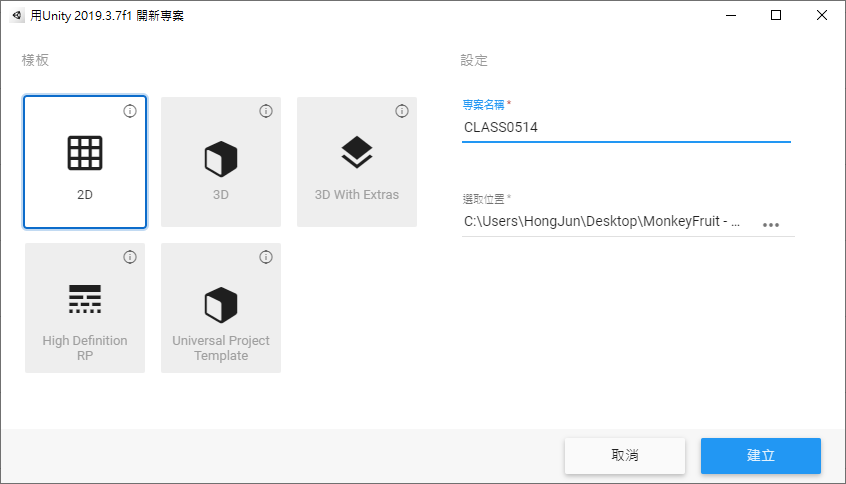
新建一個 2D 專案
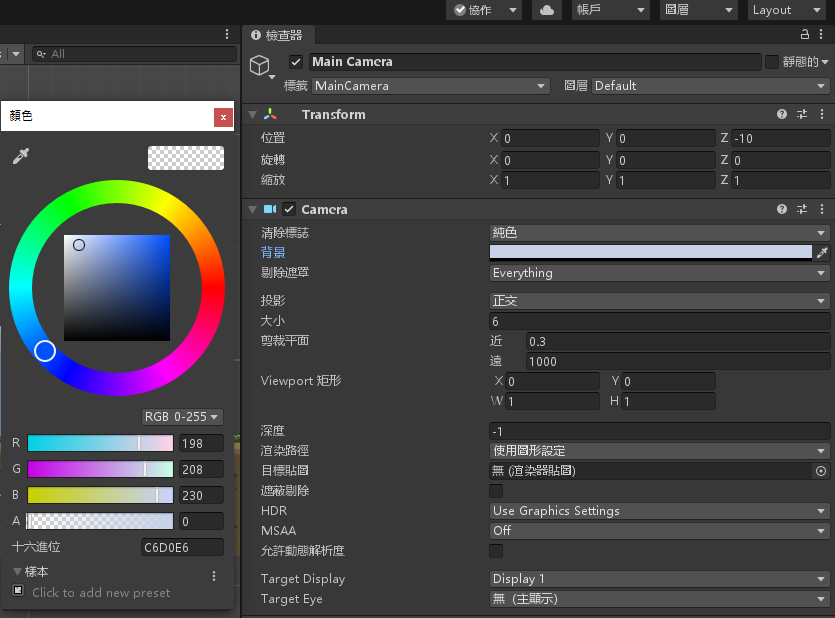
將 Main Camera 背景顏色變更為淺藍色(R = 198,G = 208,B = 230)並將大小變更為 6
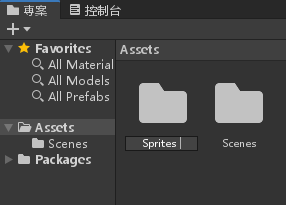
在 Assets 資料夾底下新增 Sprites 資料夾
將開頭下載的四張背景放進 Sprites 資料夾裡面
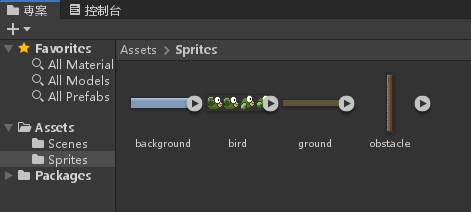
按著 Ctrl 將四張圖片選起來
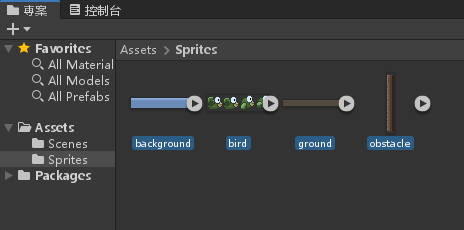
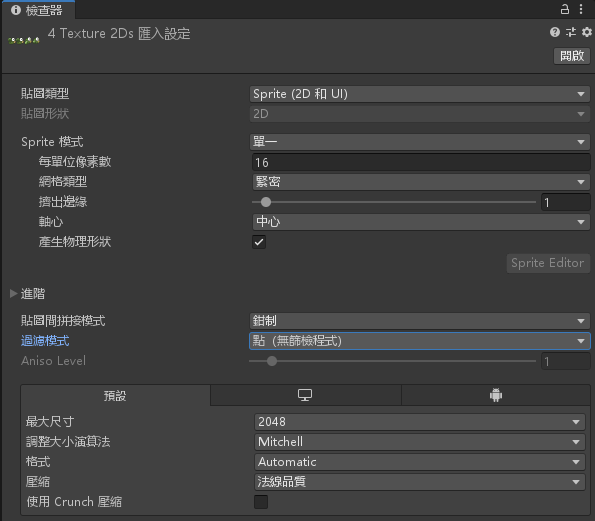
更改四張圖片的屬性;每單位像素數改為16;過濾模式改為 點(無篩檢程式)
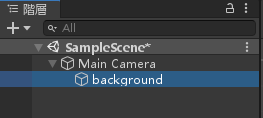
將 background.png 放到階層視窗的 MainCamera 底下(注意,是放到底下)
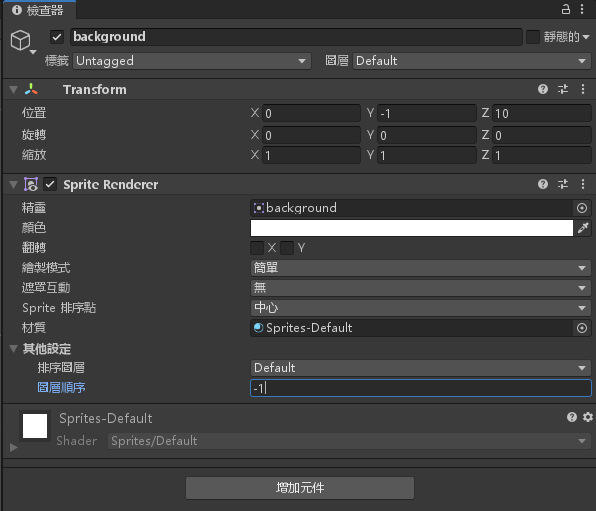
設定 background 物件的屬性;位置 Y = -1;圖層順序 -1
將 ground.png 圖片拉到階層視窗,注意層級要與 MainCamera 相同
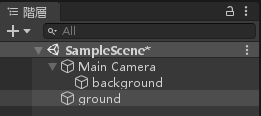
設定 ground 物件的屬性;位置 X = 16;Y = -6;圖層順序 1
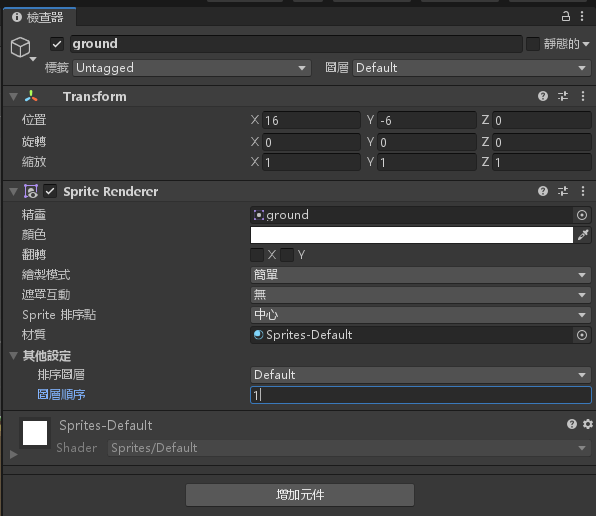
背景畫面完成
加入碰撞偵測
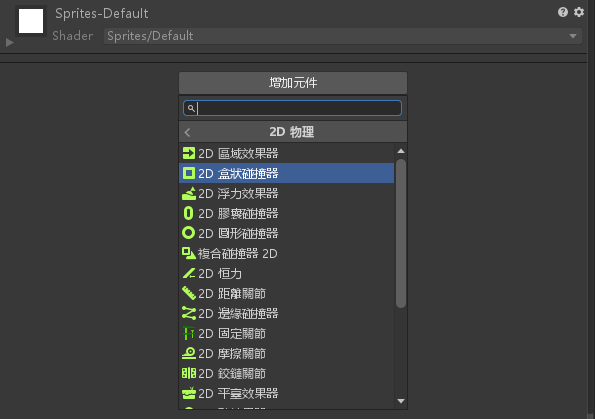
對 ground 物件新增元件>2D 物理>2D盒狀碰撞器
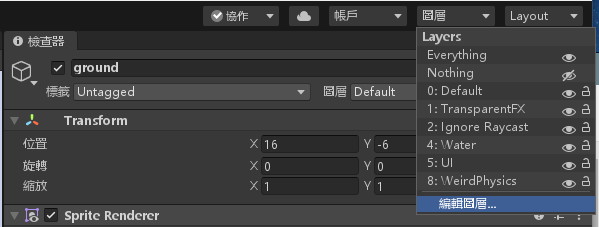
在畫面右上角按下圖層>編輯圖層
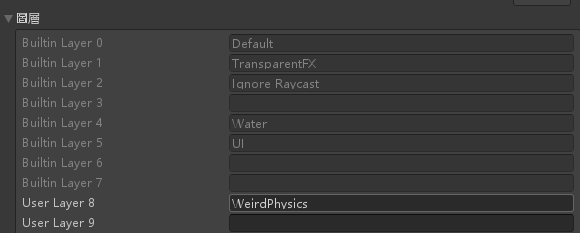
在 User Layer 新增一個圖層:WeirdPhysics
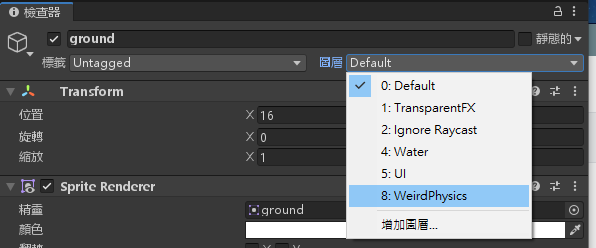
將 ground 物件的圖層設定為WeirdPhysics
依序按下工具列的編輯>專案設定,選到 2D 物理並拉到最下面,將最底下那個勾選框勾勾拿掉
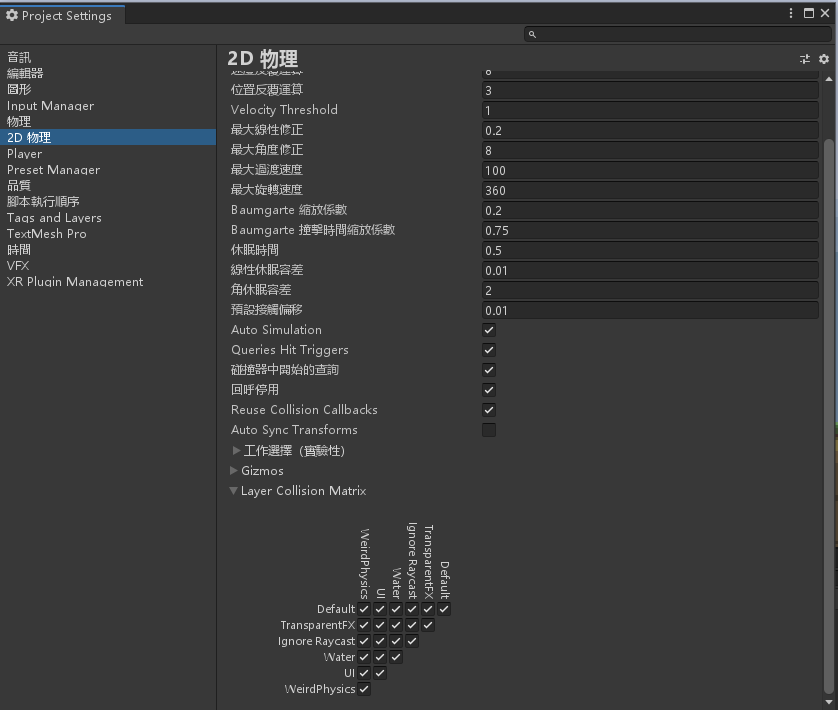
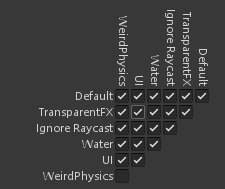
點選 Sprites 裡面的 bird 圖片
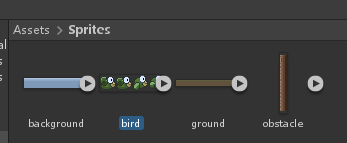
修改屬性 Sprite 模式為多個
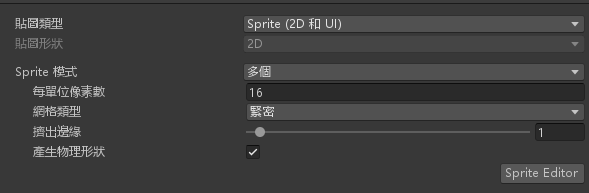
點選 Sprite Editor,點選切片;選擇 Grid By Cell Size
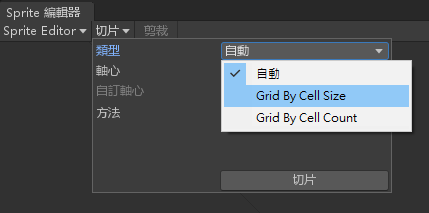
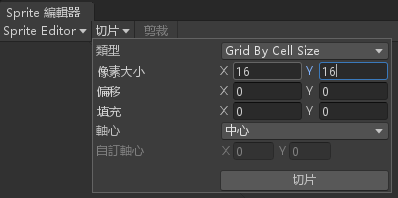
更改像素大小為 16×16,並按下切片
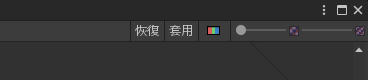
按下右上角的套用,並關閉分割視窗
按下 圖片上的箭頭,旁邊會跑出四張
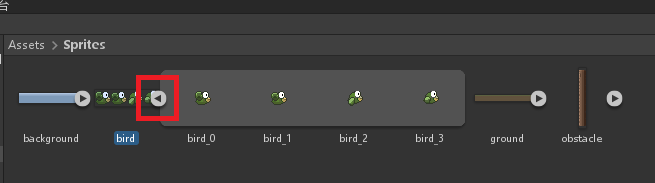
將四張分割圖片選起來
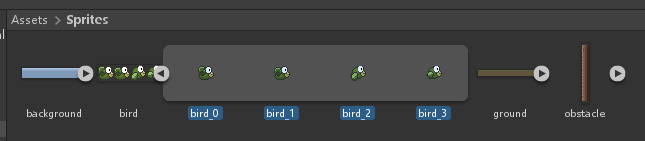
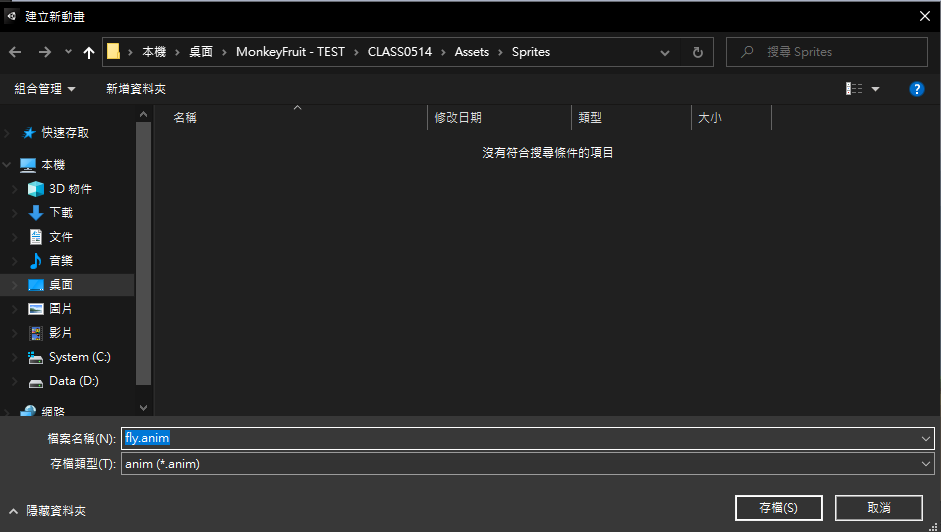
拉到階層視窗裡面,使用 fly.anim 名稱儲存在 Sprites 資料夾
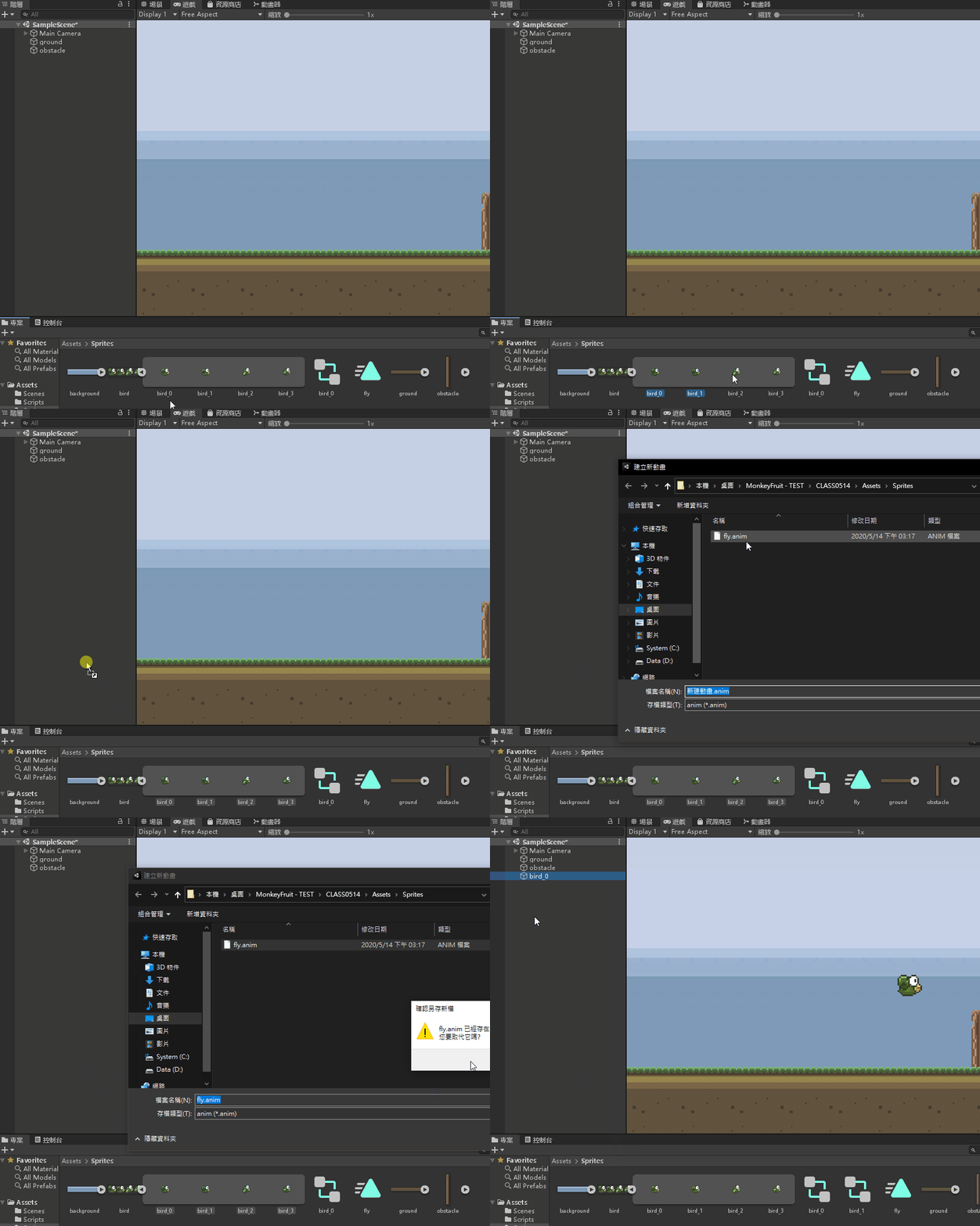
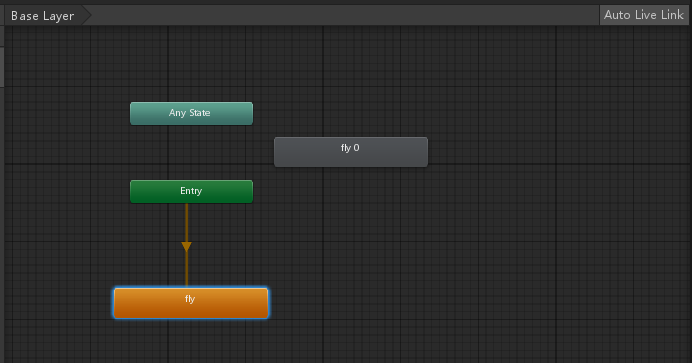
雙擊 bird_0 開啟設定視窗
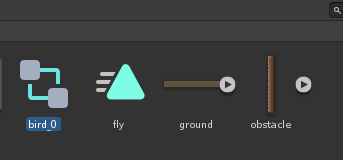
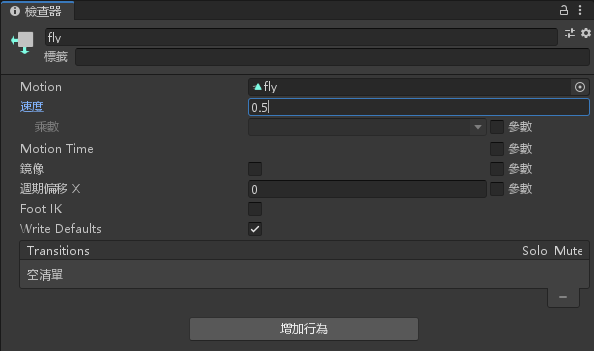
點一下橘色fly按鈕,修改速度為0.5
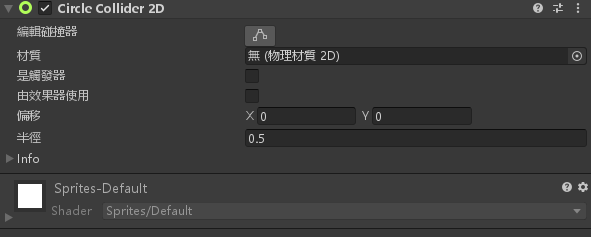
點選 bird_0 物件,新增元件>2D物理>2D 圓形碰撞器
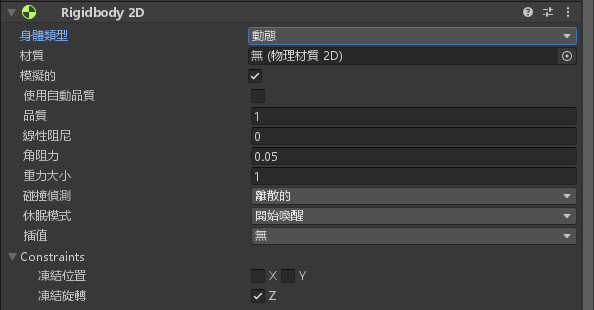
幫 bird_0 物件加上剛體特性,新增元件>2D物理>Rigidbody 2D
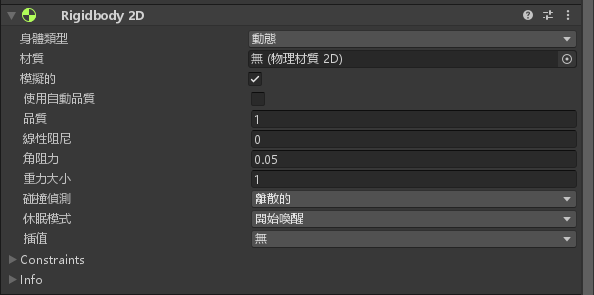
更改 Rigidbody 2D 的 Constraints ,凍結旋轉 Z 打勾
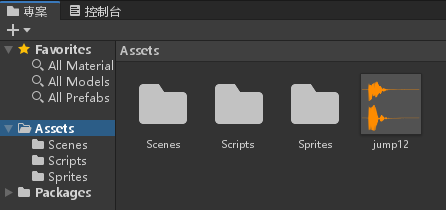
幫這隻鳥加個音效,下載下面的音效丟進專案裡面
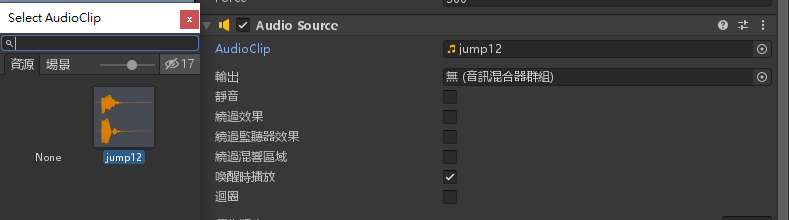
幫 bird_0 物件加入元件>音訊>音訊源,AudioClip選擇剛剛放進去的 jump12
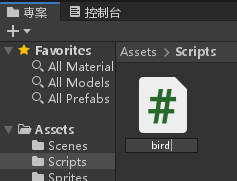
建立 Scripts 資料夾,新建一個腳本名為 bird.cs ,並加入以下程式碼
using System.Collections;
using System.Collections.Generic;
using UnityEngine;
public class bird : MonoBehaviour
{
// Start is called before the first frame update
public float speed = 2;
public float force = 300;
void Start()
{
GetComponent<Rigidbody2D>().velocity = Vector2.right * speed;
}
// Update is called once per frame
void Update()
{
if (Input.GetKeyDown(KeyCode.Space))
{
GetComponent<Rigidbody2D>().AddForce(Vector2.up * force);
GetComponent<AudioSource>().Play();
}
}
void OnCollisionEnter2D(Collision2D coll)
{
Application.LoadLevel(Application.loadedLevel);
}
}
將腳本拉到 bird_0物件底下
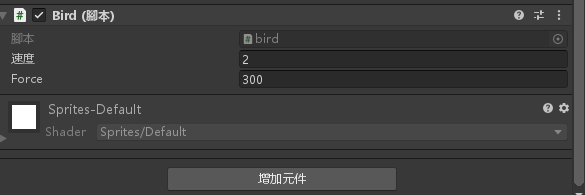
新增一個腳本名為 CameraFollow,編輯並加入以下程式碼
using System.Collections;
using System.Collections.Generic;
using UnityEngine;
public class CameraFollow : MonoBehaviour
{
// Start is called before the first frame update
private Transform target;
void Start()
{
target = GameObject.Find("bird_0").GetComponent<Transform>().transform;
}
void LateUpdate()
{
transform.position = new Vector3(target.position.x, transform.position.y, transform.position.z);
}
// Update is called once per frame
void Update()
{
}
}
將這個腳本拉進 MainCamera 底下
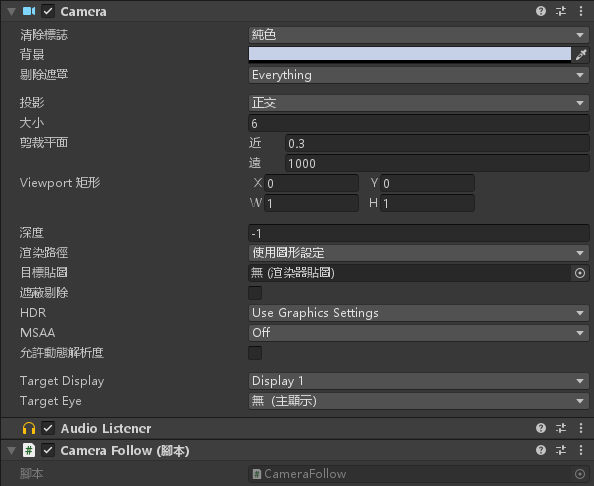
將 obstacle 圖片拉到階層視窗
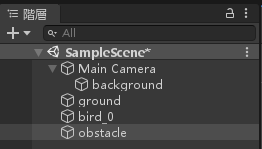
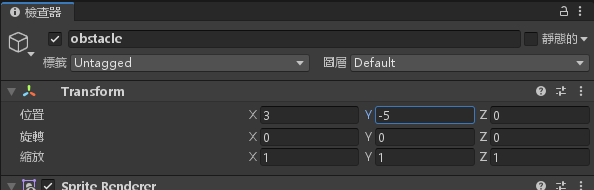
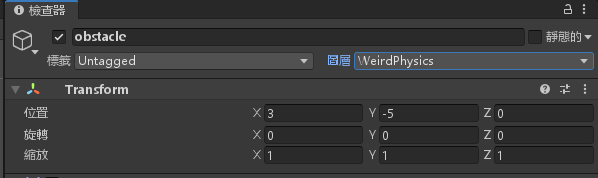
設定 obstacle 物件,位置X = 3,Y = -5
幫 obstacle 物件新增元件>2D物理>2D盒狀碰撞器
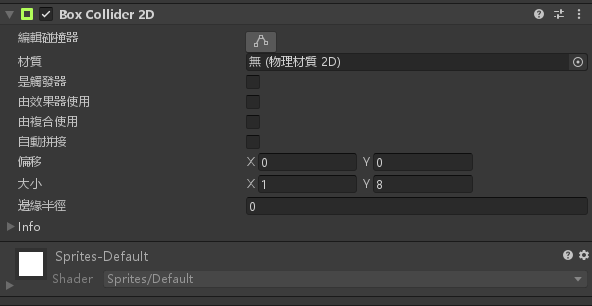
設定 obstacle 物件的圖層為 WeirdPhysis
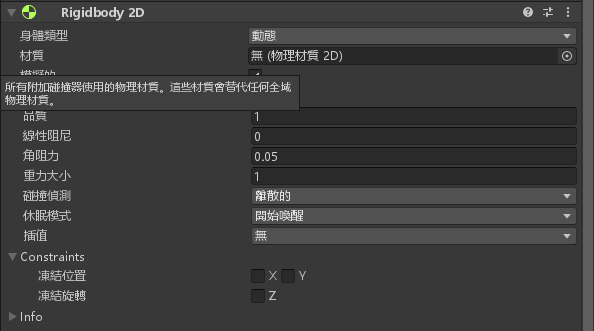
幫 obstacle 物件新增元件>2D物理>Rigidbody 2D
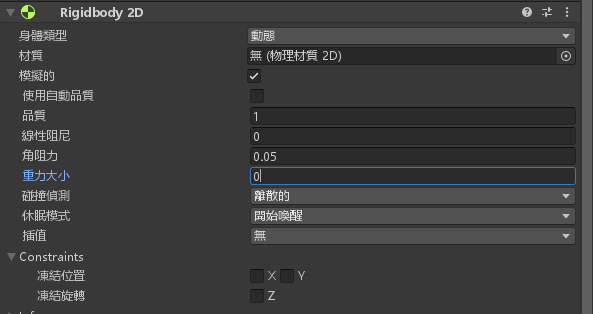
將重力大小設定為 0
將 Constraints 的凍結選轉Z打勾
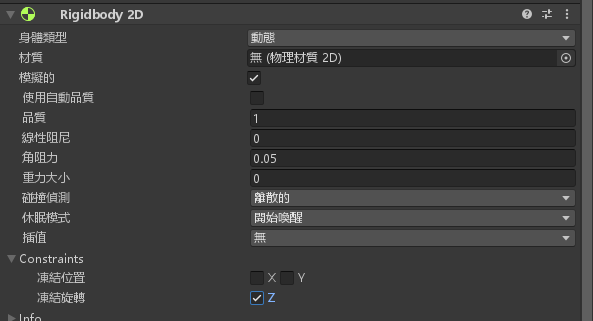
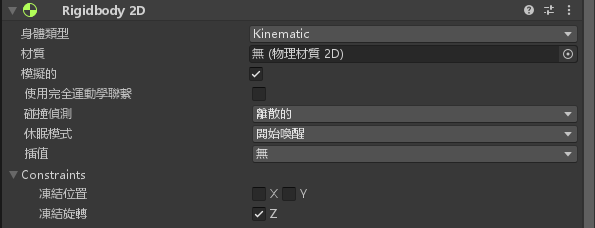
將身體類型改為 Kinematic
新增一個腳本名為 Obstacle,編輯腳本並加入以下程式碼
using System.Collections;
using System.Collections.Generic;
using UnityEngine;
public class Obstacle : MonoBehaviour
{
// Start is called before the first frame update
public float speed = 0;
public float switchtime = 2;
void Start()
{
GetComponent<Rigidbody2D>().velocity = Vector2.up * speed;
InvokeRepeating("Switch", 0, switchtime);
}
void Switch()
{
GetComponent<Rigidbody2D>().velocity *= -1;
}
// Update is called once per frame
void Update()
{
}
}
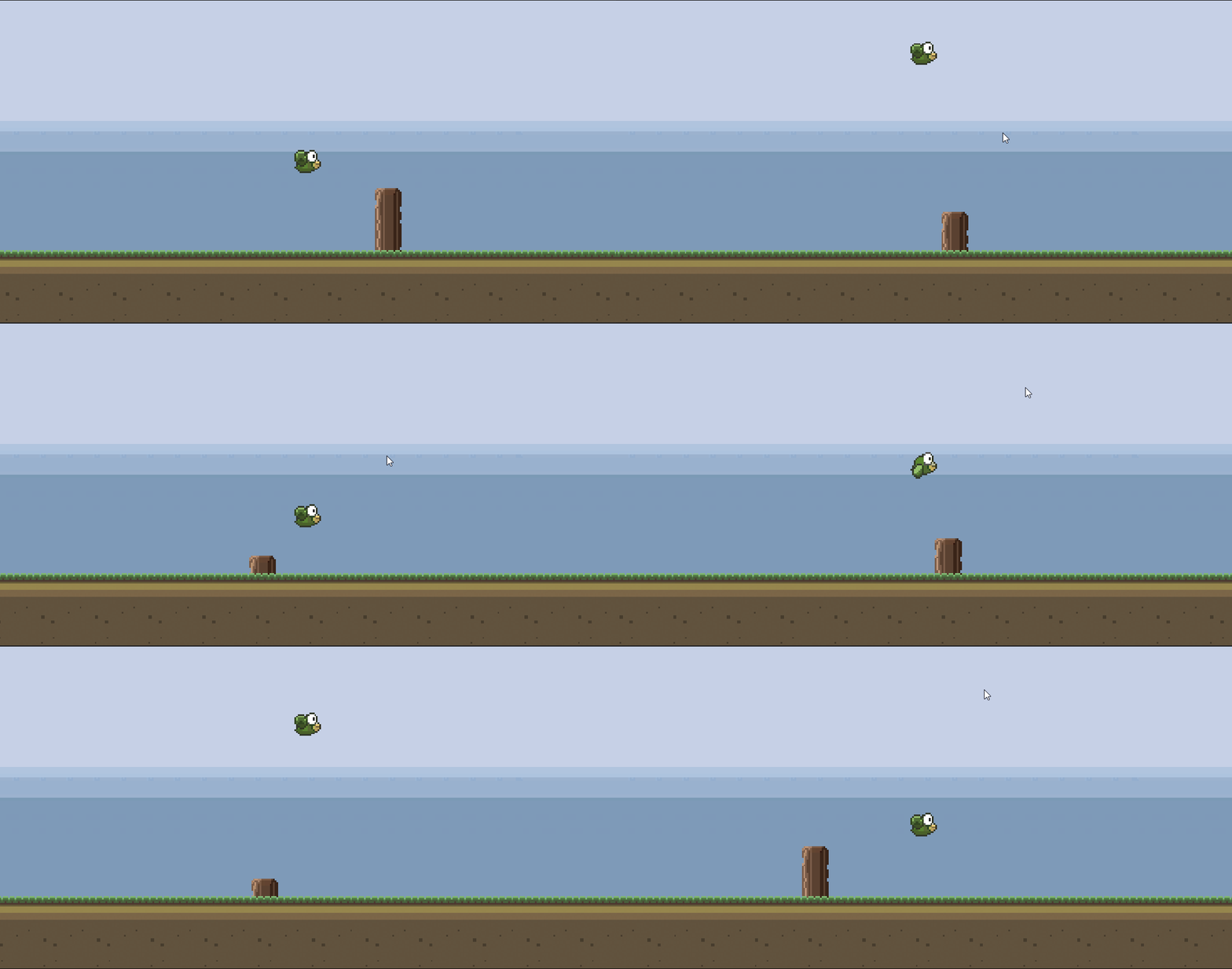
將腳本拉進 obstacle 物件底下,將速度設定為 1,遊戲即完成

完成

-
車牌回來了
但是現在汽門漏氣,維修ing...
- 受保護的內容: NAS 版 Mathbot 管理網站與 Linebot 啟動方法 - 2024 年 11 月 15 日
- Realtime 啥鬼的 - 2021 年 6 月 15 日
- nodejs 數學遊戲 - 2021 年 6 月 8 日