
前置準備
Canvas 設定請參照先前文章的「Canvas 設定」環節: 新建一個 UI 視窗
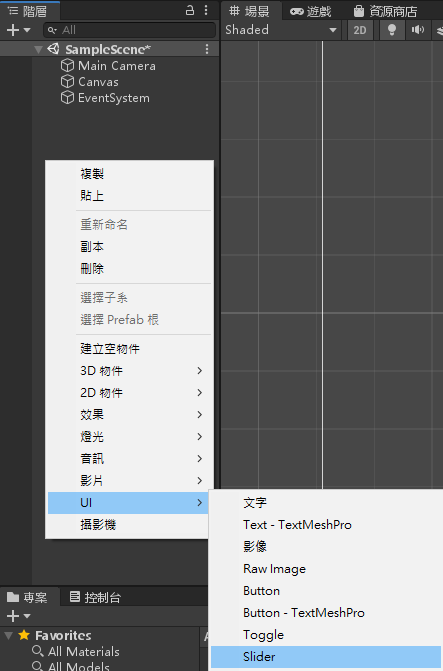
建立一個 Slider (拖曳桿)
「階層」視窗按下滑鼠右鍵,「UI」「Slider」
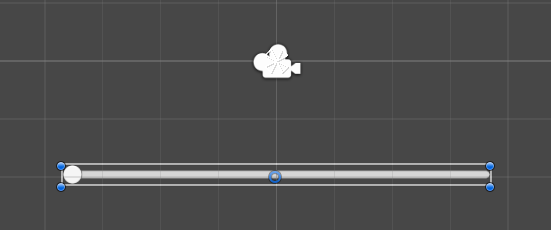
將 Slider 拉長點
設定 Slider 的屬性
- Min Value – 拖曳桿的最小數值
- Max Value – 拖曳桿的最大數值
- 整數 – 代表出現的數字只能是整數
- Value – 預設的數值

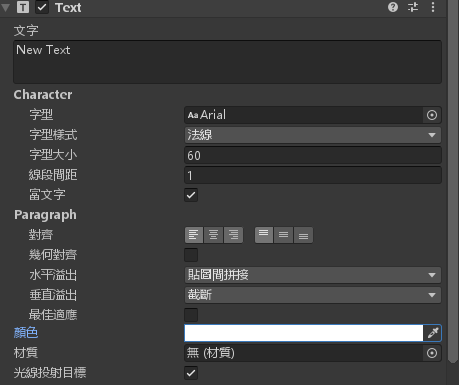
再建立一個「文字」物件用來顯示數值,並設定一下文字屬性(顏色、大小)
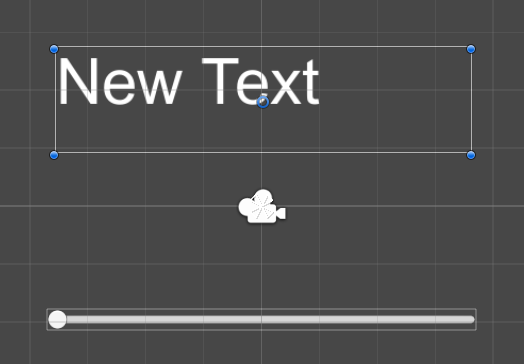
顯示效果
建立一個腳本「SliderValueToText」
編輯腳本並且加入以下程式碼
using System.Collections;
using System.Collections.Generic;
using UnityEngine;
using UnityEngine.UI;
public class SliderValueToText : MonoBehaviour
{
public Slider sliderUI;
private Text textSliderValue;
// Start is called before the first frame update
void Start()
{
textSliderValue = GetComponent<Text>();
}
public void ShowSliderValue()
{
string slidermessage = "Slider Value = " + sliderUI.value;
textSliderValue.text = slidermessage;
}
// Update is called once per frame
void Update()
{
ShowSliderValue();
}
}
儲存腳本
將腳本拉進去「Text」物件底下
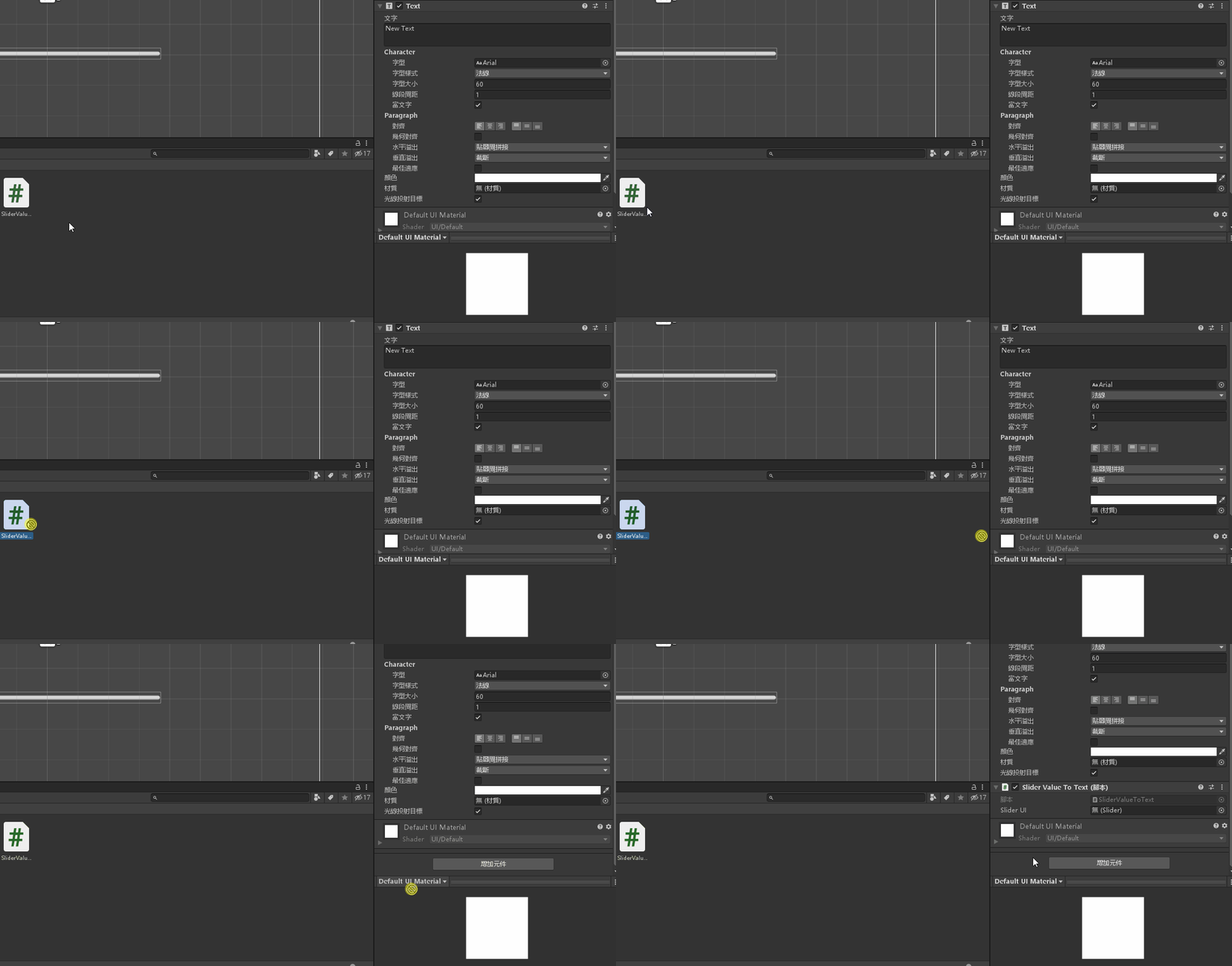
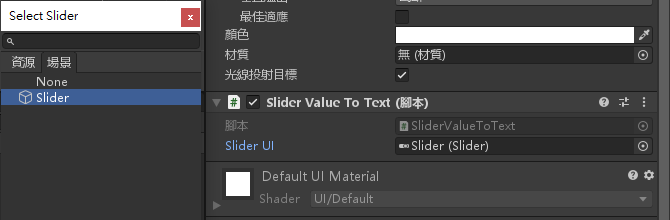
將「Slider UI」設定為「Slider」
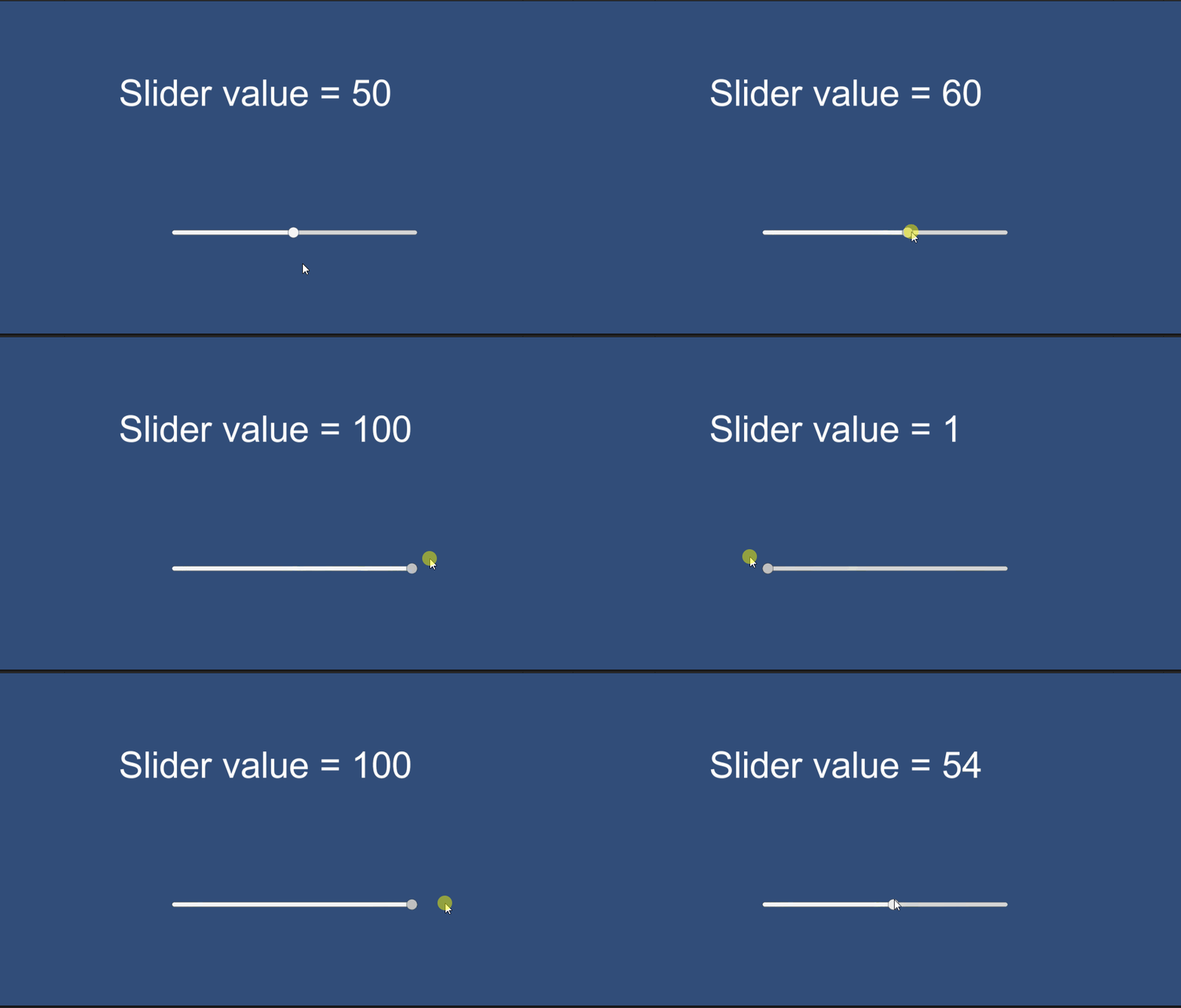
完成,看看結果

資工系所碩二畢
-
車牌回來了
但是現在汽門漏氣,維修ing...
-
車牌回來了
但是現在汽門漏氣,維修ing...
Latest posts by SHXJ (see all)
- 受保護的內容: NAS 版 Mathbot 管理網站與 Linebot 啟動方法 - 2024 年 11 月 15 日
- Realtime 啥鬼的 - 2021 年 6 月 15 日
- nodejs 數學遊戲 - 2021 年 6 月 8 日
在〈Slider Bar〉中有 1 則留言